
| What matters | Browser bookmarks | Collections | | — | — | — | | Account | Can work locally; sign-in is usually used for sync | Depends on the app or service | | Price | Usually built into the browser | Depends on the tool | | Platforms | Available in browsers, often across signed-in devices | Depends on the tool | | Offline access | You can open the saved URL offline, but most pages still need a connection | Depends on the tool and saved content | | Data location | Browser profile, with optional browser sync | Usually the app or service account | | Export | Browser bookmark export is commonly available | Depends on the tool | | Ads | Bookmark managers are generally part of the browser interface | Depends on the tool |
A saved link doesn’t become useful just because you saved it; it becomes useful when you can recognize why you kept it. Browser bookmarks versus collections is really a choice between a fast filing drawer and a more deliberate place to keep useful things together. Bookmarks are excellent for return visits, while collections make more sense when the link needs context, sorting, or a reason to come back.
The right answer is often both. Keep bookmarks for sites you use again and again, then use collections for temporary projects and saved ideas that need more than a title and a folder.
What Are Browser Bookmarks and Collections?
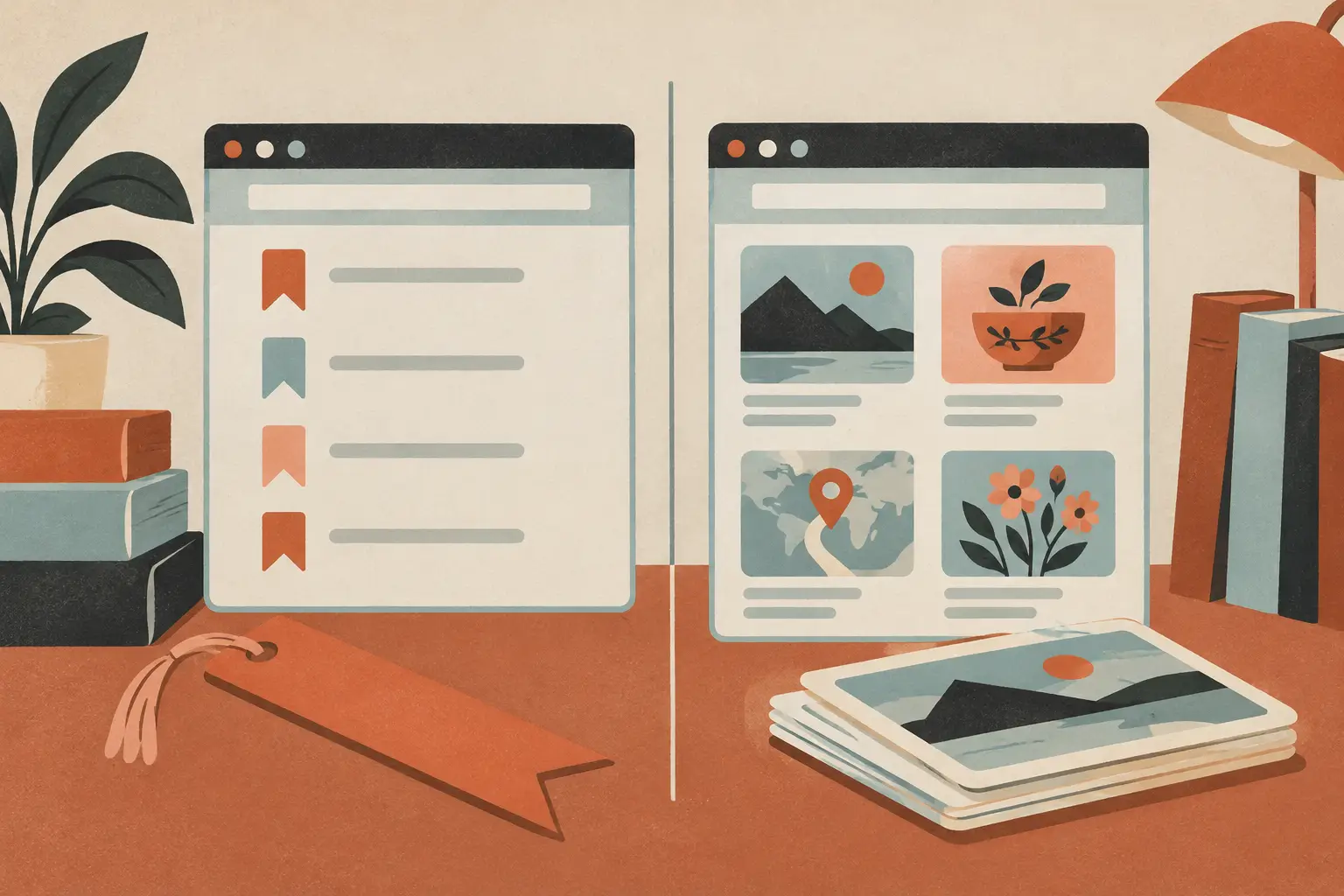
A browser bookmark is a saved web address, usually organized with folders and synced through your browser when you are signed in. A collection is a grouped set of saved items, often with extra context such as notes, tags, images, location details, or a specific project theme.
Unlike a default bookmark list, a collection lets you keep the reason you saved something alongside the link itself.
Where browser bookmarks still do their best work
Bookmarks have lasted this long for a reason: they are fast. You are already in your browser, you press save, and the page is available the next time you need it. For everyday destinations, that is exactly enough.
Think of bookmarks as your personal shortcuts. Your bank, a school portal, a favorite news site, an airline check-in page, a work dashboard, or the recipe site you always search by name all belong there. These are places you intend to visit again, not things you need to evaluate or remember in detail.
Folders can help, but only when they stay simple. A handful of broad folders such as Home, Work, Travel, and Read Later is easier to maintain than a detailed tree of categories. If filing a bookmark takes longer than saving it, the system will slowly become a junk drawer.
Browser sync is another real advantage. If you use the same browser on a laptop and phone, a bookmarked site can follow you without needing a separate app. That is handy for ordinary browsing, especially when the destination itself matters more than the information inside it.
The trade-off is that bookmarks usually preserve very little context. A title like “Best Pasta” or “Weekend Guide” may make perfect sense on the day you save it. Two months later, it may not tell you whether it was the one-pan dinner, the restaurant list for Chicago, or an article you meant to send to a friend.
Why collections feel better for saved ideas
Collections are built for the links that are not really just links. A saved video might be a recipe you want to cook. A short post might point to a coffee shop for an upcoming trip. A product page might be part of a larger decision, not something you want to buy right now.
In those moments, grouping matters. A collection named “Portland weekend” can hold restaurants, neighborhoods, hotel options, and walking routes in one place. A collection named “Weeknight dinners” can bring together recipe videos, grocery notes, and articles without making you remember which platform each item came from.
The biggest benefit is retrieval. Instead of searching your browser history and hoping you remember the right words, you can return to the intent behind the save. That is a small difference until you have hundreds of saved posts spread across social apps, browser folders, screenshots, and messages to yourself.
Collections also work well when the original source is not the final format you need. A video may be entertaining in a feed but awkward to use while cooking. A place mentioned in a post is more useful when it sits with other stops on a map. The collection approach treats the saved item as something you plan to use, not merely something you did not want to lose.
That does not mean every saved page needs a collection. Turning every interesting article into a carefully labeled project creates its own kind of clutter. Collections earn their place when you have a clear future use, a shared theme, or enough related items that a browser folder starts feeling vague.
Browser bookmarks versus collections: choose by intent
A useful rule is to ask one question before saving: am I saving a destination, or am I saving an idea?
Save a destination as a browser bookmark. This includes sites you expect to open regularly and pages whose address is the useful part. Bookmarks are quick, low-friction, and close to where you browse.
Save an idea in a collection. This includes recipes, travel plans, gift ideas, research topics, design references, event details, and anything pulled from a social feed. The value is rarely the URL alone. It is the context you will want later.
There is also a middle ground. If you are not sure whether something deserves a collection, save it quickly to a temporary reading folder or list. Review that holding area occasionally. Keep what still matters, move what belongs in a project, and delete the rest without guilt.
This is especially helpful for people who save in bursts. You might find ten recipes during a lunch break or twenty travel ideas while planning a trip. The goal is not to organize every item perfectly in the moment. It is to give your future self a realistic path back to the good ones.
Build a system you will actually maintain
The best organization system is not the one with the most labels. It is the one you can use when you are tired, distracted, or trying to save something before it disappears from your feed.
Start by separating repeat visits from future plans. Let browser bookmarks handle repeat visits. Give collections a few clear jobs, such as recipes to make, places to go, things to buy later, and articles worth reading. A small number of useful buckets is enough.
Then make names specific. “Food” is broad enough to become another pile. “Easy dinners,” “Austin coffee,” or “Birthday gift ideas” gives you a reason to open the collection later. Specific names also reduce the pressure to add lots of tags.
It helps to accept that some saving is temporary. Not every post deserves a permanent home. When a collection becomes stale, archive it, clear it, or keep only the few items that still feel relevant. Saved content should support your life, not become another inbox asking for attention.
Privacy can affect the choice too. Browser bookmarks may stay in a local profile or sync through your browser account, depending on your settings. Collection tools may store saved items in their own service. Before building a large archive, check where your data lives, whether you can export it, and whether the tool fits how you prefer to handle accounts.
Frequently Asked Questions
Are collections better than bookmarks?
Not automatically. Browser bookmarks are better for fast access to websites you visit repeatedly. Collections are better when saved items need context, grouping, or a clear purpose beyond returning to one URL.
Should I move all my bookmarks into collections?
Usually, no. Moving everything can turn a simple cleanup into a long project. Start with the bookmarks you never open because their titles no longer explain why you saved them, then keep routine sites where they already work well.
Can folders make bookmarks work like collections?
Folders can cover basic grouping, especially for a small set of links. They become less useful when you need notes, richer search, mixed sources, or details that explain what makes one saved item different from another.
A Tool Worth Trying
If you’re looking for a way to save recipes, places, and posts you will actually revisit, SocialMarks is an iPhone app that turns scattered saves into readable, searchable details.
Related reading
- How to organize saved recipes without another spreadsheet
- A simpler way to save travel ideas from social media
- Why your read-later list keeps growing
- How to clean up a browser bookmark folder
Start with one category you genuinely want to use this week. A saved idea only needs a simple home and a clear reason to return.