
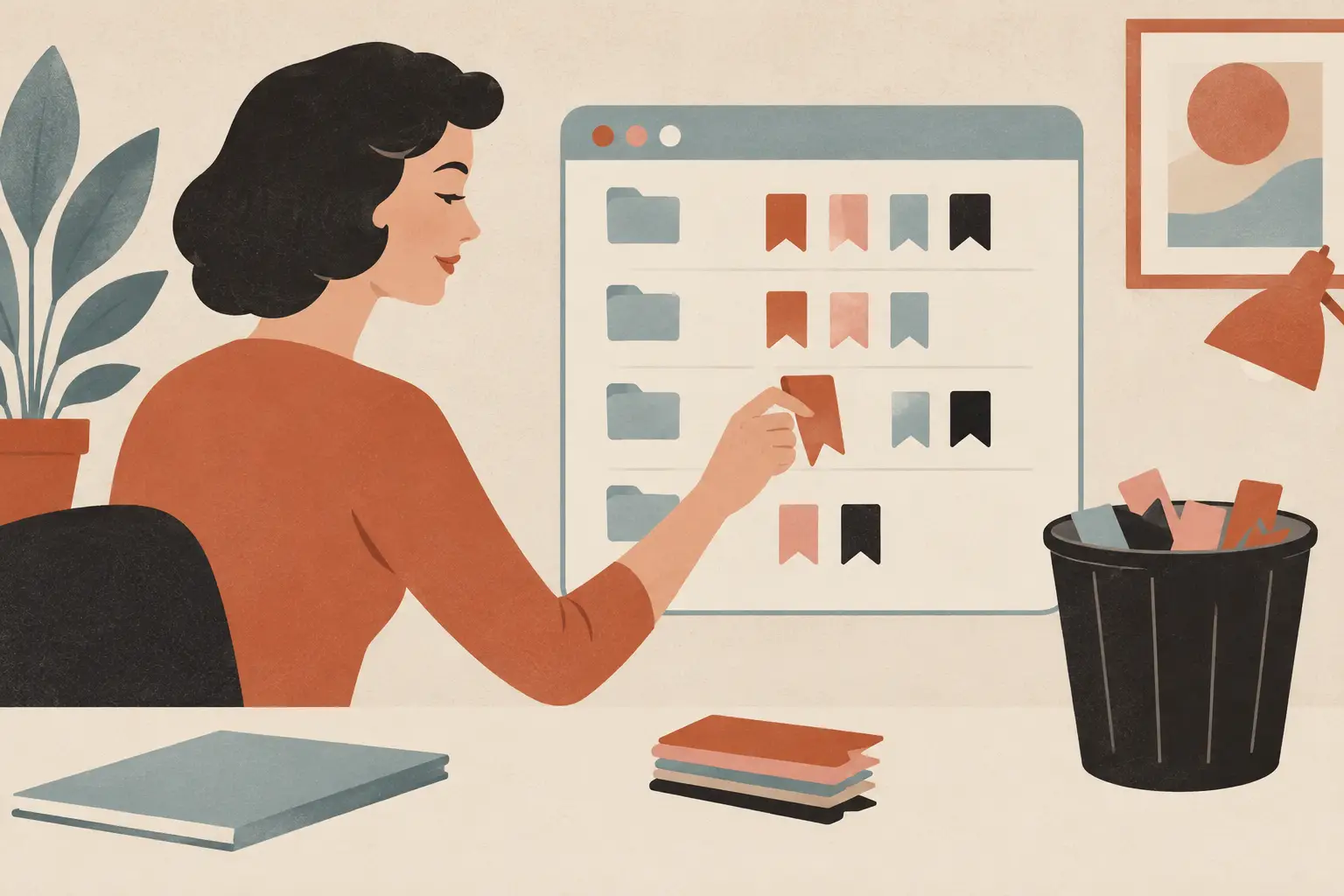
A bookmark bar doesn’t become useful because it holds more links; it becomes useful because you can find the right one. The real problem is not that you save too much. It is that saved pages with different purposes all land in the same place, then become harder to trust than a fresh search.
Quick answer: To declutter browser bookmarks, keep only links you expect to return to, sort them by the moment you will need them, and give everything else a quick decision: keep, delete, move or handle now. Use a few life-based folders, keep the bookmark bar small, and repeat a short monthly reset. No perfect folder system is needed.
Why do bookmarks get messy so quickly?
Bookmarks tend to collect during busy moments: a recipe found while planning dinner, a product you might need later, an article you mean to finish, or a resource for work. Each save feels reasonable on its own. Months later, the collection is full of duplicate pages, outdated tabs, and folders whose names no longer mean much.
The common mistake is treating every saved page like a permanent record. Most links are temporary. They support a purchase, a project, a question, or a passing curiosity. Once that moment has passed, keeping the link does not make you more organized. It just adds another choice to make later.
What is browser bookmark decluttering?
Browser bookmark decluttering is the practice of reviewing saved links, removing what no longer helps, and arranging what remains so it is quick to retrieve. The goal is not to build a giant archive. It is to create a small, useful personal reference shelf.
Unlike letting every browser save into one growing list, a simple review routine keeps useful links within reach.
How do you declutter browser bookmarks in one sitting?
Start by choosing one browser and one device. If you switch between a phone, tablet, and laptop, it is tempting to solve everything at once. That usually turns a 20-minute cleanup into a project you avoid. Begin where you save the most links or where the clutter bothers you most. Both Chrome and Safari on iPhone let you edit, move and delete bookmarks from the bookmarks view.
Use this as a cheat sheet for the four decisions:
| Decision | Use it when the link… |
|---|---|
| Keep | Answers a regular question or supports an active project |
| Delete | Is broken, a duplicate, expired, or never opened |
| Move | Belongs in a folder that matches when you will need it |
| Handle now | Stands for a tiny task you can finish today |
| Review This Week | Needs more thought than a quick glance |
Make four quick decisions
Open your bookmarks and move from top to bottom. For each link, make one of four decisions:
- Keep it, if it answers a question you regularly have, supports an active project, or would be annoying to search for again.
- Delete it, if it is broken, a duplicate, an expired offer, an old event page, or an article saved only because the headline sounded interesting.
- Move it, into a folder that matches when you will need it.
- Handle it now, if it stands for a tiny unfinished task, such as reading a short article or placing an order you have already decided on.
Be honest about saved reading. If you have not wanted to open an article after several weeks, it probably is not a bookmark. It is a piece of guilt wearing a browser icon.
The test for keeping is practical: would future you be relieved this is saved? A local school calendar, an account sign-in page, a favorite recipe source, or a useful work reference may earn a spot.
Do not spend much time reading every page before deciding. You are organizing access, not researching the internet. If a link needs more thought, place it in a temporary folder named Review This Week. That folder gives uncertain items a home without letting them block the whole cleanup.
Which bookmark folders actually help?
Folders work best when they match the situations in which you look for links. Broad labels such as Stuff, Miscellaneous, and Interesting are easy to create but rarely helpful later. Try names that reflect a task or area of life instead, such as Home, Family, Money, Travel, Work, or Recipes. Our post on how to organize bookmarks on your phone has more examples.
Keep the number of top-level folders low. A long list of detailed categories recreates the same problem in a tidier-looking form. If you are unsure whether something belongs in Home Projects or Household Purchases, the system is asking too much of you.
Within a folder, add subfolders only when a group gets difficult to scan. A Recipes folder might eventually need Weeknight Meals and Baking. A Travel folder might need Upcoming Trip and Places to Revisit. Until there is enough material to justify a split, one folder is easier to use.
Rename bookmarks when the page title is vague. A saved page called “Welcome” or “Untitled Document” tells you nothing. Change it to a short description you will recognize, such as “Car insurance claim portal” or “Easy sheet-pan chicken recipe.” Clear labels save more time than clever labels.
How many links belong on the bookmark bar?
Your bookmark bar is valuable space. Treat it like the kitchen counter, not the storage closet. It should hold the handful of destinations you use often enough to want one-click access.
For many people, that means daily tools, a few active projects, and perhaps one folder for commonly used pages. If your bar is crowded, move less frequent links into folders and leave only the pages that genuinely reduce friction during the week.
There is no universal right number. It depends on your screen size, habits, and whether you prefer visible shortcuts or search. The useful rule is simpler: if you have to scan and squint to find something, the bar is carrying too much.
Should reading links and reference links live apart?
Yes. A saved article is different from a reference page. Reading links have a short life span. Reference links are pages you may need repeatedly, even months from now. Mixing the two is one of the fastest ways to create a bookmark pile that feels impossible to manage.
Create a Reading folder only if you will review it regularly. Otherwise, use your browser’s reading list or a dedicated read-later alternative, or keep a single temporary folder with a date in the name, such as Read This Month. At the end of that period, read what still matters and delete the rest without trying to catch up.
Reference links deserve more care because they can save real time later. Keep them organized around the context in which you will use them. A warranty page belongs with Home or Purchases, while a saved school form belongs with Family. For pages you truly cannot lose, see how to archive web links so they survive page changes.
How do you keep bookmarks from piling up again?
The cleanup will not last if every new link goes straight into a default folder. Before saving, pause for one question: when will I realistically use this again? If you cannot answer, do not bookmark it yet. Search history is often enough for something you only glanced at.
When the answer is clear, choose the folder immediately and rename the bookmark if needed. This takes a few extra seconds, but it prevents the default folder from becoming a waiting room for hundreds of vague intentions. If most of your saves start on your phone, a bookmark links app can take that load off the browser.
A small monthly reset is usually enough. Open your newest bookmarks, clear out temporary reading, and remove anything tied to an event or decision that has passed. The best bookmark system is not the one with the most detailed rules. It is the one you can maintain when life is busy. For the wider habit, our guide to choosing an app to save links can help.
How SocialMarks helps
A lot of the clutter in browser bookmarks starts on the phone: recipes from Reels, places from TikTok, products from YouTube. SocialMarks is our iPhone app for those saves. Share a post or link to it from any app, and it reads what you saved (after you agree) so it lands as a recipe, a place on a map, or a searchable item, not one more vague bookmark. It costs nothing to use, shows no ads and needs no account. See the SocialMarks page or get it on the App Store.
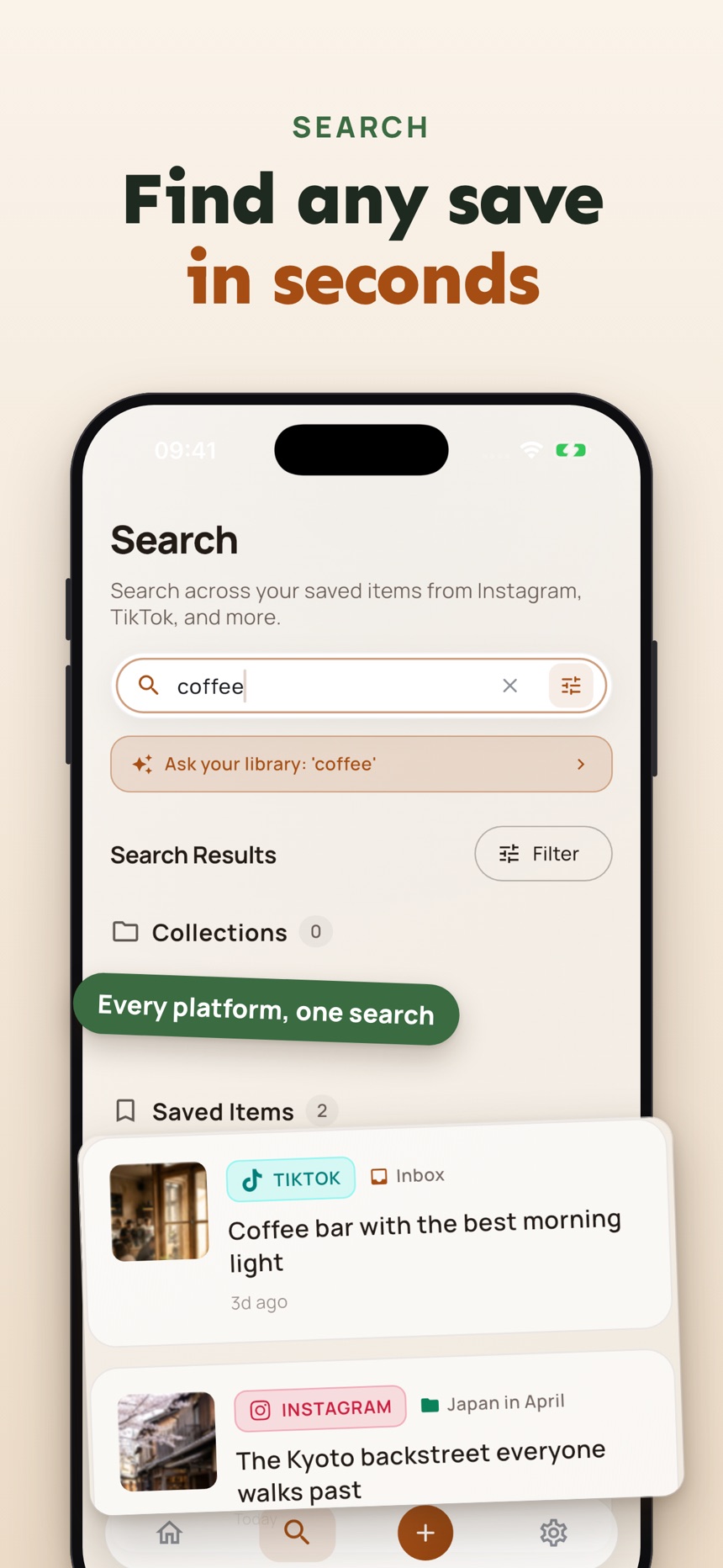
- Tags come from what the post actually says, so you do not have to invent them.
- A dead link check flags saves that no longer load.
- One search covers saves from every app.
Frequently asked questions
Should I delete bookmarks if I might need them someday?
Usually, yes, if “someday” is the only reason to keep them. Search engines are good at finding broad information again. Reserve bookmarks for pages that are personal, specific, hard to rediscover, or used more than once.
Are folders better than browser search?
They solve different problems. Browser search is useful when you remember a word from the page title or address, while folders help when you remember why you saved something. A few clear folders plus descriptive bookmark names give you both options.
What should I do with hundreds of old bookmarks?
Do not try to evaluate every link perfectly. Delete obvious clutter first, then sort the remaining useful pages into a few broad folders. If the old collection still feels overwhelming, move it into one Archive folder and focus on keeping new saves organized.
How often should I declutter my bookmarks?
A short monthly reset is enough for most people. Clear out temporary reading and anything tied to an event or decision that has passed.
How do I delete or move bookmarks in Chrome or Safari?
Open the bookmarks view or bookmark manager and use its edit option to select bookmarks or folders, then delete them or move them into a new folder. Work through one browser and one device at a time so the cleanup stays short.
How do I get rid of duplicate bookmarks?
Scan one folder at a time and delete repeated pages as you go, keeping the copy in the folder you would look in first. Renaming vague titles at the same time makes duplicates easier to spot.