
You save a link. Then another one. Then about forty more over the next two weeks. And then one day you need that one article (the one about meal prep, or the apartment you were considering, or the tool your colleague mentioned) and it’s just gone. Buried somewhere in a browser tab graveyard or a notes app you forgot you were using.
The problem isn’t that you save too many links. Most people who try to organize bookmarks on their phone run into the same wall: saving is easy, finding is hard. The real issue isn’t volume. It’s structure. Once you have a system, even a simple one, saving links becomes genuinely useful instead of just satisfying in the moment.
Quick answer: To organize bookmarks on your phone, keep every saved link in one app, sort them into four or five broad categories, add a few words of context when you save, and do a five-minute clear-out once a week. That small routine is enough to turn a pile of saved links into a list you can actually search and use.
Why do bookmarks get messy on your phone?
You’re saving without sorting
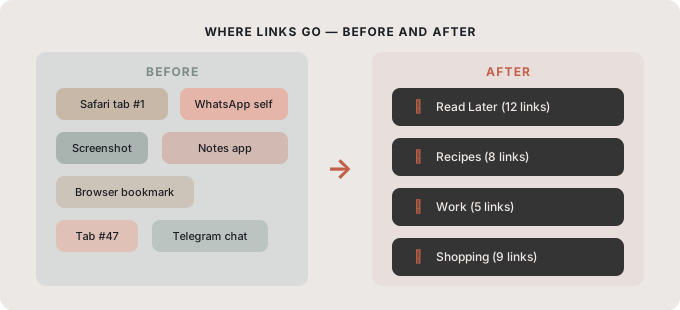
Most people treat bookmarking like a catch-all drawer. Everything goes in, nothing comes out organized. You bookmark a recipe in Safari, save an article to your notes, screenshot a product, and paste a job listing into a WhatsApp chat to yourself. By the time you need any of it, you have four different apps to check and no memory of which one you used.
Without a consistent home for links, the system collapses before it starts. The tool doesn’t matter as much as the habit of always saving in one place.
Folders nobody maintains
The classic solution is folders. And folders work, until you stop using them. You create “Recipes,” “Work,” and “Read Later,” and for two days you’re incredibly organized. Then a link doesn’t quite fit any folder, so it goes to the bottom of the list. Then another one. Then the folders are just decoration on top of the same chaos.
The fix isn’t more folders. It’s fewer, broader categories that are easy to maintain even when you’re saving something quickly while walking or watching TV. If your browser bookmarks are already overflowing, our guide on how to declutter browser bookmarks helps you start fresh.
No way to search or revisit
Saving a link with no context is like marking a page in a book without writing down what you were looking for. Two weeks later, you remember you saved “something about productivity,” but you have twelve tabs that could be that.
Adding a short note or choosing a meaningful category at save time makes revisiting much faster. Most people skip this step because it feels slow, but it saves more time than it costs.
How do you organize bookmarks on your phone?
The five steps in one view:
| Step | What to do |
|---|---|
| Pick one app | Keep every saved link in the same place |
| Use broad categories | Four or five, such as Work, Shopping and Read Later |
| Add a short note | Two or three words of context when you save |
| Weekly clear-out | Five minutes: keep, delete, open, archive |
| Make revisiting routine | Check your Read Later list once a week |
1. Pick one app and stick to it
The most impactful change you can make is consolidating. Stop splitting links between Safari bookmarks, browser tabs, notes apps, and messages to yourself. Pick a single place where all saved links live.
This doesn’t mean you need a perfect app. It means any consistent tool beats three inconsistent ones. When you always know where to look, you’ll actually go back and use what you saved.
2. Use broad categories, not deep folders
Instead of creating a folder for every possible topic, try four or five wide buckets: something like Work, Personal, Shopping, Inspiration, and Read Later. Broad categories are easier to maintain because almost anything fits somewhere.
The goal isn’t to organize bookmarks perfectly. It’s to organize them well enough that you can find things. A link in the wrong broad category is still findable. A link dumped into an uncategorized list is effectively lost. We go further into naming and grouping in how to organize saved links without clutter.
3. Add a short note when you save
When you save a link, add two or three words of context: “gift idea for Mom,” “that sourdough method,” “portfolio site to reference.” You don’t need a full description, just enough to jog your memory later.
This habit takes about five seconds and it makes a big difference when you’re scanning a list a month later. Even a single-word tag like “recipes,” “jobs,” or “tools” is better than a bare URL with no context.
4. Do a weekly clear-out
Saved links have a shelf life. Most things you bookmark in the heat of the moment stop being relevant within a few weeks. Spending five minutes every Sunday on your saved links keeps the list from becoming overwhelming:
- Keep what still matters and move it to the right category.
- Delete what you no longer need.
- Open one or two links you’ve been putting off.
- Move anything you want to keep for years into a long-term folder.
If you regularly save links while browsing on your phone, this habit is especially useful, because mobile browsing creates a high volume of impulsive saves. We covered the saving side in how to save links while browsing on your phone, and the keep-it-for-years side in how to archive web links without losing them.
5. Make revisiting part of your routine
The whole point of saving a link is to use it. But most people save links and never go back. Building a small revisit habit, even just checking your “Read Later” list once a week while you have coffee, changes the dynamic completely.
When revisiting becomes normal, you stop saving things mindlessly and start saving things intentionally. The list gets shorter, better, and actually useful.
What works for organizing bookmarks on mobile?
Desktop bookmarks and mobile bookmarks behave differently. On desktop, you probably have a keyboard, tabs you can scan, and time. On mobile, you’re often saving something while you’re doing something else: walking, commuting, waiting in a queue.
That means your mobile system needs low friction at the save step. Long category names, required text fields, or any step that takes more than a few taps will be skipped. The best system for mobile is fast to save and easy to search later. Browser bookmarks still have a role for sites you open every week; Google’s Chrome bookmarks help and Apple’s guide to bookmarking in Safari on iPhone show how to manage those.
A good habit is to treat your saved links the way you’d treat your inbox: check it regularly, clear out what’s done, and don’t let it become a storage unit. For more on that mindset, see link organization that keeps saves useful.
What is the right mindset for organizing bookmarks?
Organizing bookmarks on your phone doesn’t need to be a project. It needs to be a reflex. One app, a few loose categories, a quick weekly check: that’s all it takes to go from “I know I saved that somewhere” to actually finding it. The goal isn’t a perfect archive. It’s a system you’ll actually use tomorrow.
How SocialMarks helps

If you want one clean place for everything you save, SocialMarks is the iPhone app we built for it. It saves posts and links from Instagram, TikTok, YouTube and the web, and reads them for you (only after you agree), so each save gets a type, like recipe, place, product or how-to, and tags based on what the post actually says. There are no ads, no account is needed, and the app is free to use.
- Collections for your broad categories, and one search across everything.
- A dead link check that flags saves that no longer open.
- A Private Vault locked with Face ID or Touch ID.
Install SocialMarks from the App Store on your iPhone or iPad.
Frequently asked questions
What is the best way to organize bookmarks on a phone?
Keep all saved links in one app, use four or five broad categories, and add a few words of context when you save. A short weekly clear-out keeps the list from growing out of control.
How many bookmark folders should I have?
Start with four or five broad folders such as Work, Personal, Shopping, Inspiration and Read Later. You can add more later, but too many folders at the start makes every save slower.
How often should I clean up my saved links?
Once a week for about five minutes works for most people. Delete what you no longer need, move links into the right category, and open a few you have been putting off.
Is SocialMarks free?
SocialMarks is free to use, with no ads and no account needed. An optional SocialMarks Pro subscription removes the weekly save and collection limits and adds features such as iCloud sync and Ask Your Library.
How do I organize Safari bookmarks on iPhone?
In Safari, open the bookmarks view and tap Edit to create folders, move bookmarks or delete the ones you no longer need. Keep Safari bookmarks for sites you open every week, and save the rest of your links in one app with a few broad categories.
Should I use tags or folders for bookmarks on my phone?
Start with four or five broad folders, and add a single-word tag or a short note only when a link fits more than one place. On a phone, every extra step at save time makes you more likely to skip saving.