

Saving links does not create a useful library; it creates a second inbox. If your browser has dozens of tabs and your bookmarks are a mixed drawer of recipes, work research, gift ideas, and things you meant to read, you already know the real problem. Learning how to organize saved links is less about building a perfect folder system and more about making saved pages easy to find when they matter.
Quick answer: To organize saved links, send every link to one trusted place, give it a simple category based on why you saved it, and add a few words of context. Keep temporary saves apart from keepers, review the temporary ones once a week, and lean on search for the rest. A small system you keep using beats an elaborate one.
What is link organization?
Link organization is the habit of collecting web pages in a consistent place and labeling them so you can retrieve them later. It turns random saves into a practical reference library instead of a pile of good intentions. Our post on link organization that keeps saves useful goes deeper on the why.
Unlike default browser behavior, a simple link-organizing approach lets you save useful pages with enough context to find them again without opening tab after tab.
Why should all new links go to one home?
The fastest way to lose useful information is to save it in several different places. A few links go into browser bookmarks, a few sit in open tabs, some live in text messages, and others get sent to yourself in a chat. Each location feels convenient in the moment, but none becomes reliable.
Choose one main home for links you may want again. It can be a browser bookmark setup, a notes app, a read-later tool, or a dedicated bookmarking app. The tool matters less than the rule: when a link is worth saving, it goes there.
You do not need to move every old bookmark on day one. Start with new saves, then clean up older links when you naturally come across them. When you are ready for that cleanup, our guide on how to declutter browser bookmarks keeps it short. A system that begins small has a much better chance of becoming part of your routine.
How should you sort saved links?
Many bookmark systems fail because their categories describe the website instead of the reason the link matters. A page from a cooking site could be dinner inspiration, a recipe to make this week, or a technique you want to learn. Those are different future needs.
Use categories that match the moments when you will look for a link. For most people, a short set of practical groups works well:
- Read later, for articles, guides, and long pieces that need focused time
- Try soon, for recipes, products, places, and activities you may act on shortly
- Keep, for references you expect to revisit, such as instructions or useful calculators
- Share, for links you want to send to a partner, friend, coworker, or family group
These labels are examples, not rules. If you save lots of home projects, a Home category may earn its place. If parenting resources are the main reason you save links, organize around routines that make sense to your family. The right categories should feel obvious when you are tired, distracted, or holding a sleeping baby with one free hand.
The four example categories at a glance:
| Category | Use it for |
|---|---|
| Read later | Articles, guides and long pieces that need focused time |
| Try soon | Recipes, products, places and activities you may act on shortly |
| Keep | References you will revisit, such as instructions or calculators |
| Share | Links to send to a partner, friend, coworker or family group |
How much context should you add to a saved link?
A title alone is often not enough. Months later, “Easy Weeknight Pasta” may not tell you why you saved it, especially when you have three similar recipes. A short note can do more than another layer of folders.
When you save a link, add a few words that answer one question: why will future you care? Write “good for a rainy Saturday,” “compare before replacing charger,” or “explains the setting clearly.” The note does not need to be polished. It only needs to make the link recognizable at a glance.
Tags can help too, as we explain in our post on choosing a bookmark links app that stays useful, but they have a trade-off. They are flexible for links that belong in more than one group, yet an ever-growing tag list becomes its own clutter. Stick to broad, repeatable tags such as “ideas,” “buy,” “family,” or “work.” If you hesitate over a tag, skip it.
Use folders sparingly
Folders are helpful when they reflect a real area of life you return to often. They become less helpful when every saved page gets its own tiny home. Deep nesting asks you to remember where you put something, which is exactly the work a good system should reduce.
Try one or two levels at most. For example, “Trips” can hold a few destination folders if travel planning is a regular need. But a structure like “Trips > Summer > Possible > Food > Breakfast” is usually too specific to maintain on a phone.
How do you separate temporary saves from keepers?
Not every link deserves permanent storage. Some pages are reminders for the next few days, while others are genuinely useful references. Mixing both makes a collection feel overwhelming because the time-sensitive items get buried under things you are simply keeping.
Create a clear temporary space such as “This Week,” “Inbox,” or “Try Soon.” Use it for links that need a decision or action. Once you read the article, buy the item, make the recipe, or decide against it, delete the link or move it to a long-term category.
This is the part many people miss. Organizing is not only sorting what you keep. It is also giving yourself permission to let a saved link expire. The internet will still have more ideas tomorrow.
How do you make saving frictionless on your phone?
A good system has to work during real life: while waiting in line, between meetings, or during the five quiet minutes before bedtime. If saving a link requires several screens, precise formatting, and a decision about six categories, you will go back to leaving tabs open.
Set up the quickest saving action your chosen tool allows. Then use a simple default: save first, sort later if you need to. Capturing a link quickly is better than losing it because the process felt like homework.
There is one exception. If the link is sensitive, personal, or contains account information, do not treat a general bookmark collection as secure storage. Save only what you are comfortable seeing in that tool, and use appropriate account security for anything private.
How often should you review saved links?
A saved-link collection stays useful through light maintenance, not a dramatic yearly cleanup. Pick a natural moment to scan your temporary category: Sunday evening, a commute, or whenever you are already planning the week. The goal is not to process every saved item perfectly.
Look for three easy decisions. Delete links you no longer need, act on anything that is still timely, and move true keepers into a category you will remember. Even a brief review prevents the saved pile from becoming another source of guilt.
If you never review links, simplify further. Keep only an inbox and a small number of permanent categories. A system should fit your attention, not demand more of it.
When does search beat organization?
You do not have to categorize every link with great precision. Search is often better for large collections, especially if your tool can search titles, notes, and tags. The key is saving a few meaningful words so search has something useful to find.
Think of categories as your broad map and search as your shortcut. You might browse “Recipes” when you want inspiration, then search “freezer” when you remember one specific meal idea. Both methods work together without adding complexity. The same idea applies to the rest of your phone, as our list of minimalist phone apps shows: fewer loose ends competing for your attention.
How SocialMarks helps
SocialMarks is our iPhone app for organizing saved links without doing the filing yourself. Share a post or page to it from Instagram, TikTok, YouTube or the web, and it reads what you saved (after you agree), then sorts it as a recipe, place, product, workout, event, how-to and more. It is free to use with no ads and no account. Find out more on the SocialMarks page or get it on the App Store.
- Tags come from what the post actually says.
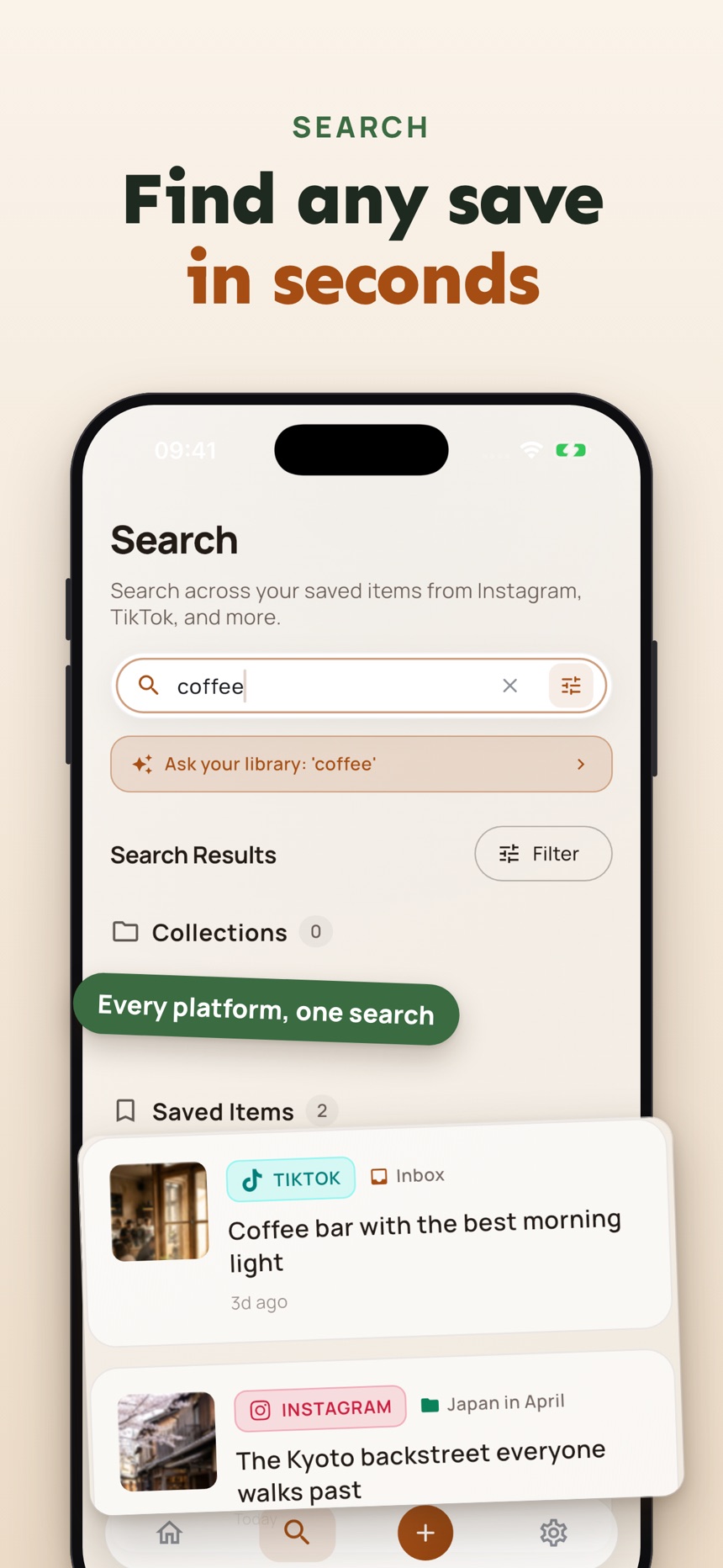
- Search across everything you saved, from every app.
- Collections you can share as a public web page, plus a Private Vault for personal saves.
All guides in this topic
- Mobile Link Saver for Fewer Forgotten Tabs
- 7 Read Later Alternatives for Saving Links
- How to Declutter Browser Bookmarks Easily
- How to Archive Web Links Without Losing Them
- 12 Kinds of Minimalist Phone Apps Worth Keeping
- Best Pocket Alternative for Saving Links
- How to Save Recipe Links Without Losing Dinner
- A Bookmark Links App That Stays Useful Daily
- How to Save Instagram Links Easily Without the Mess
- Best App to Save Links for Everyday Browsing
- 5 Simple Ways to Save Links on iPhone (Without Losing Them)
- 5 Simple Ways to Organize Bookmarks on Your Phone (And Actually Find Them)
- 5 Simple Ways to Save Links While Browsing on Your Phone
- The Simple Way Students Save Research Links and Stay Organized
- How to Save Links While Traveling (So You Actually Use Them)
- How to Keep Track of Job Listings You Find Online
- How to Save Links to Watch Later (And Actually Find Them)
- How to Organize Your Saved Links as a Content Creator
Frequently asked questions
Should I organize every old bookmark?
No. Start by organizing new links and the old ones you actively use. Cleaning everything at once can turn a helpful reset into a project you avoid.
How many categories should I use for saved links?
Use as few as you can while still finding things comfortably. A handful of purpose-based categories is usually easier to maintain than a detailed folder tree.
Should I save links in browser bookmarks or a separate app?
It depends on where you naturally save and search. Browser bookmarks are convenient for quick access, while a separate tool can be useful if you want a focused collection that is easier to sort, annotate, or review.
Are tags or folders better for saved links?
Folders suit broad, stable areas of life, and tags suit links that belong in more than one place. Most people do well with a few folders and a handful of broad tags.
How do I organize links people share with me?
Send links that people share in chats or emails to the same place as your other saves instead of leaving them in the conversation, and add a few words about who sent each one and why. A Share category works well for links you plan to pass on.
What is the best way to organize website links?
Group website links by the reason you saved them, such as Read later, Try soon, Keep and Share, rather than by the site they came from. Add a few words of context to each so search can find it later.