
You’re on your phone, you find something worth keeping (an article, a product, a recipe, a job posting) and you tap away from it to do something else. Two days later you try to find it and it’s gone. Not deleted, just buried somewhere between thirty open Safari tabs and a notes app you stopped trusting.
If this sounds familiar, you’re not alone. Most iPhone users have no real system to save links, just a loose collection of habits that don’t connect to each other. The goal of this post isn’t to use all five methods below. It’s to understand them, then commit to one that fits how you actually browse.
Quick answer: The most reliable way to save links on iPhone is to tap the Share button in any app and send the link to one dedicated link-saving app. Safari Reading List, Shortcuts and Notes all work for specific jobs, but one consistent destination you reach through the share sheet is what keeps links findable weeks later.
Why are links on iPhone so easy to lose?
You’re relying on open tabs
The most common way people try to save links on iPhone is by leaving a tab open. This works for about twenty minutes. After that, Safari loads more pages, the tab gets pushed back in the list, the phone restarts or the browser refreshes, and whatever you were saving is gone or forgotten.
Open tabs are not a storage system. They’re a working memory, and working memory has a limit. If your “saved links” are actually forty unread Safari tabs, you already know this problem well. We wrote more about breaking that cycle in a mobile link saver for fewer forgotten tabs.
Every app becomes a separate drawer
Some people save to Notes. Others paste links into a Reminders task or a WhatsApp message to themselves. Some screenshot everything. Each of these is a separate place with no connection to the others, so when you need something, you’re checking four or five apps with no idea which one you used that day.
A good system to save links on iPhone has one home. Not four. The method doesn’t matter as much as the consistency.
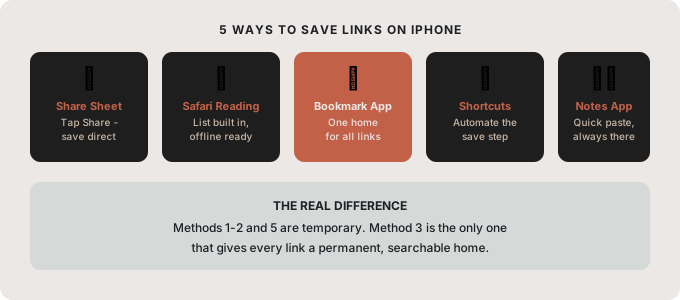
What are the 5 ways to save links on iPhone?
1. Use the Share Sheet
Almost every app on iPhone has a Share button: the little box with an arrow pointing up. Tap it while viewing any page, article, or product, and you get a row of options, including sending to other apps, copying the link, adding to Safari Reading List, and more. Apple explains the basics in its guide to sharing from apps on iPhone.
This is the fastest way to save links on iPhone from any app. The catch is that the Share Sheet is only as good as the app you’re saving into. If you share to Notes, it’s fine. If you share to a dedicated link app, even better: the link lands in a searchable, organized place immediately. The same move works for social posts, which we cover in how to save Instagram links easily.
2. Safari Reading List
Safari has a built-in feature called Reading List. When you’re on a page, tap the Share button, then “Add to Reading List.” You can find it later under the bookmarks icon (the open book) in Safari. Apple’s page on bookmarking websites in Safari on iPhone shows what the built-in options offer.
Reading List works well for articles you plan to read within a day or two. It’s not great for long-term saving because it only collects pages from Safari, and there’s no folder structure and no way to organize by topic. It’s a short-term queue, not a library. If you use it as a permanent save, it fills up fast and becomes just as hard to search as your tab list. For other options in this style, see our list of read later alternatives for saving links.
3. A dedicated link-saving app (the most reliable method)
The most reliable way to save links on iPhone is a standalone app built for this job. You save a link, it goes into a collection, and it’s there whenever you need it. Searchable, organized, and separate from the noise of your browser and messages.
The key advantage is that everything goes to one place, and that place is designed for finding things again. No scrolling through unrelated notes or digging through a reminders list. Just your links, sorted the way you sorted them.
This pairs naturally with the Share Sheet: tap Share in any browser or app, tap the app, and the link is saved in two taps. If you’ve been thinking about how to keep everything tidy afterward, we covered that side in detail in 5 simple ways to organize bookmarks on your phone.
4. Apple Shortcuts
If you want to get more specific, Apple Shortcuts lets you build a custom save flow. For example, a shortcut that takes the current page in Safari and appends it to a note with today’s date, or one that saves any shared link into a specific folder in Files.
This is a good option for people who save links as part of a workflow, such as researchers and writers, or anyone who wants to process links automatically. The setup takes a few minutes, and Shortcuts can run straight from the Share Sheet, so the friction stays low even with a custom setup.
5. Notes app as a temporary inbox
Notes is already on every iPhone and it’s fast to open. Pasting a link into a note takes five seconds. For a lot of people this is the first method they try, and it works as a temporary inbox if you actually come back to it.
The problem is that most people don’t. Links pile up in a single note, or spread across five notes with names like “links,” “stuff,” and “misc.” If you use Notes, treat it like a physical inbox: check it once a day, move anything worth keeping into a proper link app, and delete the rest.
Which method should you use?
| Method | Best for | Main limit |
|---|---|---|
| Share Sheet | Saving from any app in two taps | Only as good as the app you send to |
| Safari Reading List | Articles you will read this week | Safari only, no folders |
| Dedicated link app | Long-term saving from every app | You need to pick one and stick with it |
| Apple Shortcuts | Custom, repeatable workflows | Takes time to set up |
| Notes | A one-day holding area | Hard to search once it grows |
Short answer: one consistent app plus the Share Sheet. The Share Sheet is already on your iPhone, so you don’t need to change how you browse. Just change where the links land when you tap Share. Instead of saving to Notes or leaving a tab open, save to an app that organizes them.
How do you build the habit of saving links on iPhone?
The method that works is the one you’ll use tomorrow without thinking about it. That’s usually the one with the least friction at the moment of saving.
For most people, that’s: tap Share, tap the app, done. Two taps from any page in any app. No tab left open. No note to clean up later. If you want the full routine for saving on the go, read how to save links while browsing on your phone.
Start with that. Give it two weeks. The habit builds fast when saving links on iPhone is that simple.
How SocialMarks helps

SocialMarks is the iPhone app we built for exactly this workflow. You save posts and links from Instagram, TikTok, YouTube and the web through the Share Sheet, and SocialMarks reads them for you (only after you agree), so each save becomes something useful: a recipe, a place, a product, a how-to. The app is free, shows no ads and works without an account.
- Save a link, text, screenshot or photo from any app through the iOS share sheet.
- Search across everything you saved, and group saves into collections.
- Your library is stored on your iPhone, with a Private Vault locked by Face ID or Touch ID.
Download SocialMarks on the App Store for iPhone and iPad.
Frequently asked questions
How do I save a link on my iPhone for later?
Tap the Share button in the app you’re using and choose where to send the link. For long-term saving, pick one link-saving app and send every link there so you always know where to look.
Is Safari Reading List good for saving links?
Reading List is good for articles you plan to read soon. It only collects pages from Safari and has no folders, so it gets hard to use as a long-term library.
Where do saved links go on iPhone?
It depends on where you sent them. Safari bookmarks and Reading List live in Safari’s bookmarks view, Notes links stay in the note, and links shared to another app are saved inside that app.
Can I save links from Instagram or TikTok on iPhone?
Yes. Use the share or copy link option on the post and send it to your link app. SocialMarks accepts links from Instagram, TikTok, YouTube and many other apps through the iOS share sheet.
How do I add a website to my iPhone Home Screen?
In Safari, open the page, tap the Share button and choose Add to Home Screen. This works well for one or two sites you open every day, but not for saving many links.
Where is Safari Reading List on iPhone?
In Safari, tap the bookmarks icon, which looks like an open book, then switch to the Reading List tab with the glasses icon. Pages you added from the Share button appear there.