
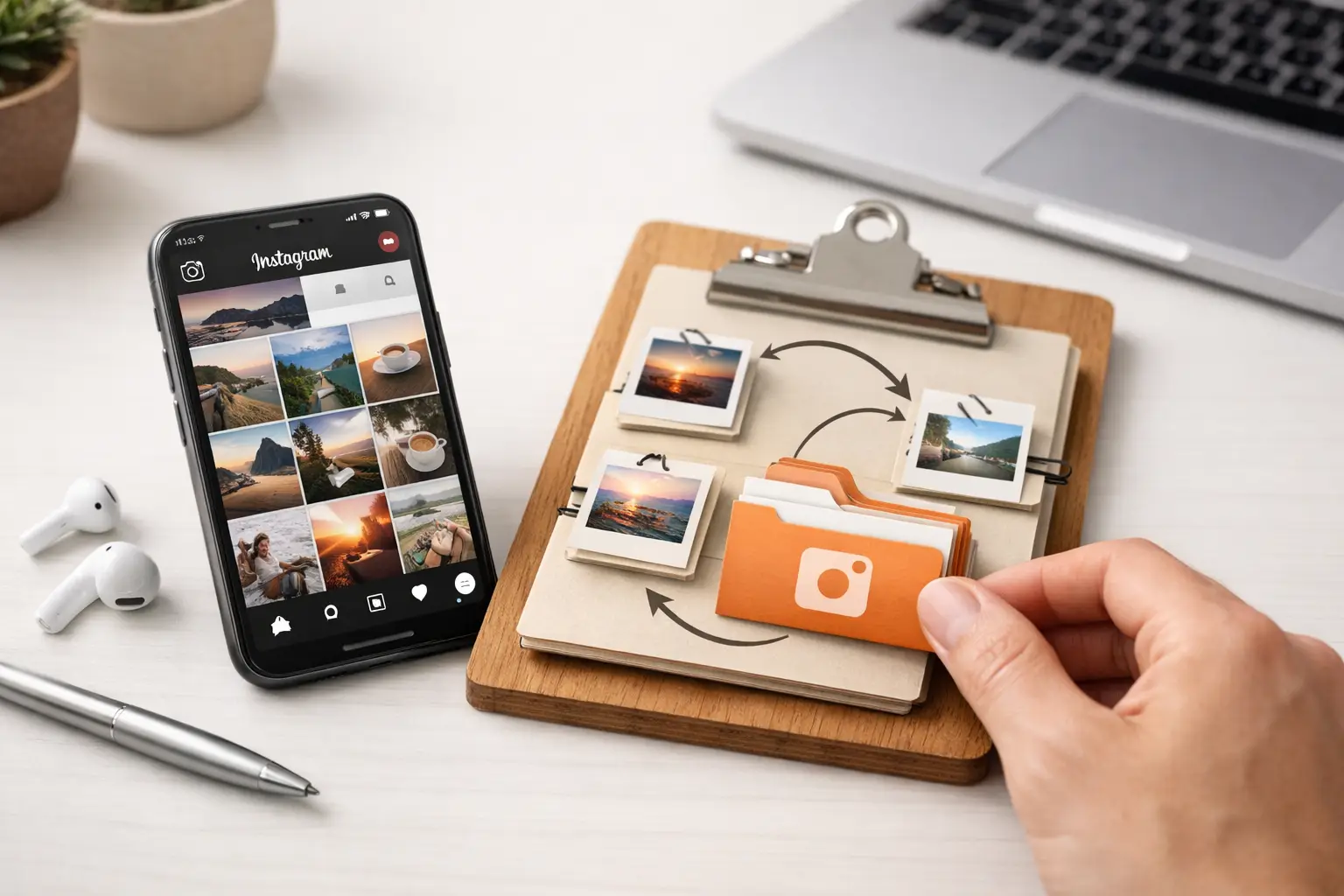
A Reel with a weeknight pasta recipe. A post with a stroller that might actually fit in your trunk. A funny video to send your sister later. Instagram is full of things worth keeping, but trying to save Instagram links easily can turn into a pile of forgotten posts fast.
Quick answer: To save Instagram links easily, tap the share icon (or the three-dot menu) on a post or Reel and choose Copy link, or share it straight to one place you trust. Add a few words about why it matters. Use Instagram’s own Saved Collections for casual inspiration, and a separate link app for posts you plan to cook, buy, visit or share.
The problem is not usually saving something in the moment. Instagram makes that part simple. The harder part is finding it three days, three weeks, or three months later, when you actually need it. A small system can make the difference between “I know I saved that somewhere” and having the right post ready in seconds.
Why do Instagram saves get messy so quickly?
Instagram moves fast. You might scroll through 50 posts during a coffee break, save six of them, then never open your Saved tab again. Even if you use Collections, the visual grid can become crowded when recipes, gift ideas, parenting tips, travel spots, and product recommendations all live in the same place.
There is another catch: many posts are useful because of the details in the caption, comments, or linked product. A thumbnail alone may not tell you why you saved it. Was that the toddler snack idea with freezer instructions? The haircut reference you liked? The Reel with the hotel name in the comments? When the context is gone, a saved post is not much help.
This is why a good link-saving habit should do two things: capture the post quickly and give it just enough context to be useful later. It does not need to become a whole new organizational project.
How do you save Instagram links easily in the moment?
- On the post or Reel, tap the share icon, or open the three-dot menu.
- Choose Copy link, or pick an app from the share sheet to send it there directly.
- Paste or share it into your one default place for links.
- Add a few words about why you saved it, such as “freezes well” or “gift for Dad.”
This gives you a direct reference to the original post instead of relying only on a screenshot or a vague memory. Then send that link to one place you trust. The best place is the one you will actually check again. For some people, that is Instagram’s built-in Saved feature. For others, it is a dedicated bookmark app, a note, or a private message thread with themselves. On iPhone, our post on how to save links on iPhone compares the options.
The key is to avoid scattering links across too many places. If some Reels are saved in Instagram, others are texted to a partner, a few go into Notes, and the rest live in browser tabs, your future self has to search everywhere. Pick a default home for most links and use it consistently.
Which way to save depends on what you will do next:
| Way to save | Best for | Trade-off |
|---|---|---|
| Instagram Saved and Collections | Broad, visual inspiration | Stays inside Instagram; deleted posts are gone |
| Copy link to one place | Posts you will cook, buy, visit or share | Needs a short note right away |
| Screenshot only | A quick reminder | No direct link to the original post |
Use Instagram Collections for quick, visual saving
Instagram’s Save button is useful when you are browsing and do not want to interrupt your flow. Tap the bookmark icon beneath a post, and Instagram stores it in your Saved items. Hold the icon or select a Collection to place it into a category such as Recipes, Baby Ideas, Home, or Gifts.
Collections work best for broad, visual inspiration. If you are collecting outfit ideas, room colors, weekend trips, or funny videos, being able to scan thumbnails is often enough. Keep collection names plain and easy to recognize. “Easy dinners” is better than a clever label you will forget.
There is a trade-off. Instagram Collections keep your saves inside Instagram. That is convenient while the post is still available, but it is less helpful if a creator deletes the post, changes it, or you need to share the actual link outside the app. Collections are also not ideal when one post belongs in several categories.
Save the link when the details matter
Copying the link is a better choice for posts you expect to act on. Think recipes you want to cook, products you want to compare, doctors or local businesses you may contact, activity ideas for the kids, or tutorials you need to revisit. Recipe Reels in particular deserve their own system, which we cover in how to save recipe links without losing dinner.
When you save a link outside Instagram, add a short note right away. Just a few words are enough: “high-protein muffins, freeze well,” “convertible car seat, check height limits,” or “birthday gift idea for Dad.” That tiny bit of context saves real time later.
How should you organize saved Instagram posts?
The easiest categories are based on what you will do next, not on every possible topic. A parent might save Instagram links under Meals to Try, Kids Activities, Gear Research, and Send to My Partner. Someone planning a move might use Places to Visit, Furniture, Repair Tips, and Budget Ideas.
Try to keep your main categories to four or five. Too many folders create the same decision fatigue you were trying to avoid. If you pause for 20 seconds wondering whether a post belongs in “Food,” “Meal Prep,” “Healthy,” or “Dinner,” the system is working too hard.
A useful rule is this: organize for retrieval, not for filing. Ask, “What words will I think of when I need this?” If you will search for “potty training,” save it under that phrase. If you will think, “What were those easy lunches?” put it under Easy Lunches. Our guide on how to organize saved links applies the same idea to everything you save.
For posts that truly fit more than one purpose, use a simple note with two keywords instead of duplicating everything. A Reel for kid-friendly tacos could be labeled “easy dinners, kids.” Later, either phrase can help you find it.
Give yourself a light weekly reset
Saving is easy. Reviewing is where your saved links begin to earn their place.
Once a week, spend five minutes looking at recent saves. You can do this while waiting in the school pickup line, during a lunch break, or after the kids are asleep. Delete the things that no longer matter. Move a few important items into clearer categories. Open one or two links you have been meaning to use.
This is not about maintaining a spotless archive. It is about keeping the useful things near the surface. If you saved a recipe, make it or decide you will not. If you saved a product recommendation, compare it, add it to a gift list, or let it go.
A short reset also prevents the familiar trap of treating saved content like a to-do list. Instagram is built to give you more ideas than you could ever use. Your bookmark system should help you choose, not make you feel behind.
When does a separate bookmark app make more sense?
Instagram’s built-in saves are enough if you mostly collect inspiration and rarely need to share or sort it further. But a dedicated link organizer can be a better fit if you save content from Instagram alongside articles, store pages, videos, and other apps.
That is especially true for people who use saved links to plan real life: meals for the week, activities for a rainy Saturday, products to research before a purchase, or trips to take later. Having everything in one simple place means you do not have to remember where each idea originally came from.
Start with one decision: where will your important Instagram links live? Keep Instagram Saved for casual inspiration if you like, but choose a second home for posts you expect to use, buy, cook, visit, or share. For the next week, copy only the links that pass a simple test: would I be disappointed if I could not find this again?
How SocialMarks helps
SocialMarks is our iPhone app built for saving Instagram posts and Reels, along with TikTok, YouTube and any web link. Share a post to it from Instagram, and it reads the caption, audio and video (after you agree) so the save becomes a recipe, a place on a map, a product or another clear type, not just a thumbnail. It is free to use with no ads and no account. See the SocialMarks page or get it on the App Store.
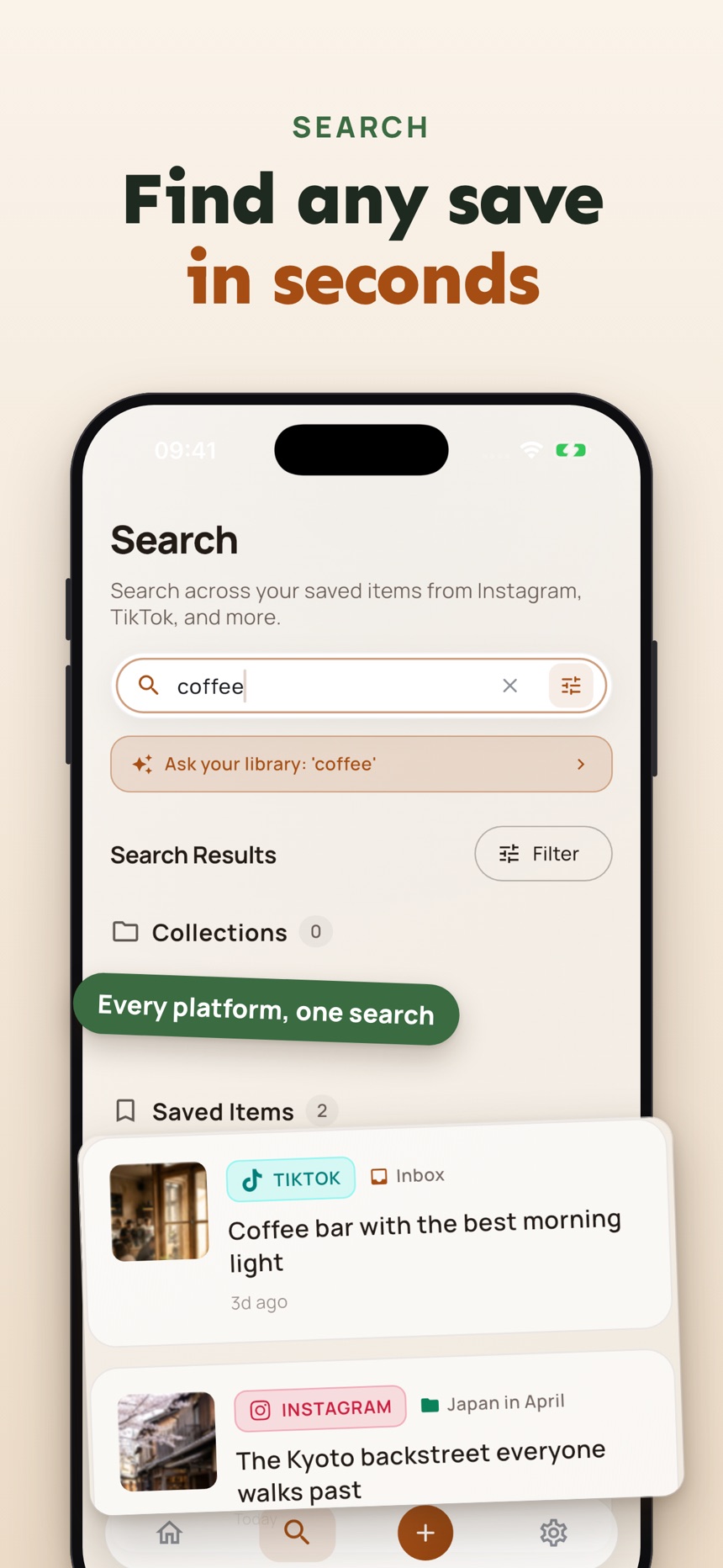
- Recipe Reels become ingredients, steps, Cook Mode and a shopping list.
- Places mentioned in a post are pinned on a map.
- Search across everything you saved, from Instagram and every other app.
The best system is not the one with the most folders. It is the one that helps you turn a good find into something useful, one saved post at a time.
Frequently asked questions
How do I copy the link to an Instagram post or Reel?
Tap the share icon under the post, or open the three-dot menu, and choose Copy link. You can then paste it into any app or note.
Are Instagram Collections enough for saving posts?
They work well for visual inspiration you browse by thumbnail. They are less helpful if a creator deletes the post, if you need to share the link outside Instagram, or if a post belongs in several categories.
Why can’t I find a post I saved on Instagram?
The creator may have deleted or archived it, or it may be buried in a large Saved grid with no context. Saving the link elsewhere with a short note makes it easier to find again.
How many categories should I use for Instagram saves?
Four or five main categories based on what you will do next, such as Meals to Try or Gear Research, are usually enough.
Where are my saved posts on Instagram?
On Instagram, your saved posts are in the Saved section, which you reach from the menu on your profile; any Collections you created appear there too. Posts you saved somewhere else, such as a link app or a note, stay in that app.
Can SocialMarks save Instagram Reels?
Yes. SocialMarks saves Instagram posts and Reels through the iPhone share sheet and, after you agree, reads the caption, audio and video, so a recipe Reel becomes ingredients and steps and places are pinned on a map. It is free to use, with no ads and no account needed.